
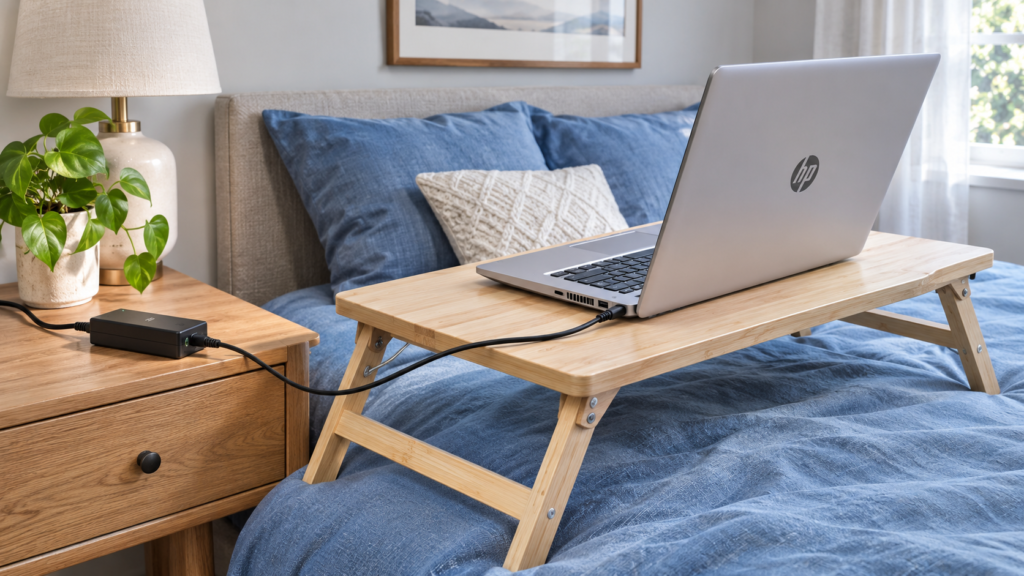

You can use an HP laptop while sitting in bed, but avoid placing it directly on a mattress, blanket, or pillow. Soft bedding can block the openings your laptop uses to release heat. A hard laptop tray or a stable bed desk gives the computer a level surface while you sit comfortably. If you plan to charge it, set the power adapter on a clear bedside table where it can stay uncovered.
What Happens When You Place a Laptop on Bedding?
In a fan-cooled laptop, the fan draws air through an intake and moves it across parts that carry heat away from the processor. Warm air then leaves through an exhaust vent. The locations of these openings vary between HP models. An intake may be underneath the laptop, while an exhaust may be near a side or the hinge.
On a desk, the laptop’s feet leave a small gap beneath the case. A mattress compresses under the same feet, allowing fabric to fill that gap. Even on a tray, a duvet pushed against the hinge can block a rear exhaust.
When airflow drops, the fan may run faster. If heat continues to build, the processor may reduce its speed to cool down. This protective response, called thermal throttling, can make a game stutter or a video export take longer. The laptop may also shut down if it gets too hot.
A single session on bedding does not automatically mean the laptop has suffered permanent damage. Performance can return to normal once it cools. Repeated or prolonged overheating, however, can damage internal components. Move the laptop when you notice an obstruction instead of waiting for it to slow down or switch off.
Does Excessive Heat Affect Battery Life?
There are two ways to think about battery life. Runtime is how long one charge lasts. Lifespan is how well the battery holds a charge as it ages. A game can drain the battery quickly today because it uses more power. That short runtime alone tells you little about the battery’s condition.
Prolonged heat exposure is a different concern. HP explains that a lithium-ion battery can lose capacity faster when it spends extended periods both hot and highly charged. Charging during demanding work can add to the heat the laptop needs to release. If you regularly plug in for gaming or video editing, give the laptop a clear desk for those sessions.
Gaming, Gtudying, and Watching Videos in Bed
The cooling demand depends on the laptop model, software, room temperature, and background activity. These are typical patterns, not measured temperatures.
| Activity | Typical heat generation | Suitable placement |
|---|---|---|
| Reading and light web browsing | Usually low on text-heavy pages | Hard laptop tray |
| Studying and editing documents | Usually low for notes and essays | Stable bed desk for typing |
| Watching videos | Low to moderate, depending on playback | Hard tray with clear vents |
| Video conferencing | Variable, especially with camera effects | Bed desk or regular desk |
| Gaming | Often high during graphics-intensive games | Clear desk for longer sessions |
| Video editing and rendering | Can stay high until an export finishes | Well-ventilated desk |
Which Surface is Best For Your Laptop?
| Surface | Stability | Ventilation and suitability |
|---|---|---|
| Mattress | Compresses under the laptop | Can close the gap beneath the base. Avoid direct use. |
| Blanket or duvet | Shifts when you move | Folds can cover both intake and exhaust openings. Unsuitable. |
| Pillow | Tilts and compresses | Fabric can wrap around the base and sides. Unsuitable. |
| Hard laptop tray | Stable if level and wide enough | Suitable when all the laptop’s feet fit on top. |
| Foldable bed desk | Stable if its legs are secure | Suitable when it stays level as you type or shift position. |
| Laptop cooling pad | Depends on its support | Can help if it suits the laptop’s airflow design and its own intake stays clear. |
| Standard desk or table | Generally steady | A good choice for sustained work when vents have space around them. |
An expensive cooling pad is optional. For reading, writing, or watching a film, a simple rigid tray is usually sufficient. A fan-powered pad placed directly on a thick duvet can have its own intake blocked.
How to Set up and Charge Your HP Laptop in Bed
- Position the tray before the laptop. Check that it stays level when you sit back. Bring the keyboard close enough to type with relaxed shoulders and adjust the screen so you can read without leaning forward.
- Find the vents and clear the bedding. Check underneath, along the sides, and near the hinge. If you are unsure which openings need clearance, consult the diagram in your model’s user guide.
- Give the charger a separate spot. You can charge the laptop while using it. Use the supplied adapter or an HP-approved replacement compatible with your model. Keep the power brick uncovered on a hard surface and away from your skin.
- Route the cable with room to move. Leave enough slack to shift the tray without pulling the plug sideways. Keep the cord out from under bed-desk legs, and replace a damaged or frayed cable before charging.
- Move the equipment before sleeping. Shut down when you finish, or move the laptop to a clear table if it needs to keep working. If charging continues, leave both the laptop and adapter off the bedding.
What to Do If Your HP laptop Gets too Hot
Some warmth and a brief burst of fan noise are common during demanding work. Pay attention to changes from the laptop’s usual behaviour, such as a fan that stays loud during light use, an unusually hot case, sudden slowdowns, freezing, unexpected shutdowns, or a thermal warning. These symptoms can have other causes, so consider what the laptop was doing and where it was sitting.
For ordinary overheating, close demanding applications and move the laptop to a clear desk. If it remains unusually hot, shut it down, disconnect the charger, and let it cool naturally. Once cool, check the external vents for visible lint and follow HP’s cleaning instructions for your model. If the problem returns on the desk, note any warning message, use the available HP PC Hardware Diagnostics tests, or seek qualified service.
If the case bulges, the touchpad lifts, or you notice a burning smell, stop using and charging the laptop. Disconnect power if safe and leave it off while you seek qualified assistance. If you see smoke or flames, leave the area immediately and call local emergency services from a safe location.
Frequently Asked Questions
Is it safe to leave a sleeping laptop on a mattress?
Move it to a hard surface first. Closing the lid does not always shut the laptop down. Some Windows laptops can briefly perform background tasks during sleep, even when the screen is dark.
Can I use a lap desk with a cushioned underside?
Yes, if the upper surface is rigid, supports all the laptop’s feet, and stays level. The cushion should sit beneath the tray without curling around the laptop or covering a vent.
Can a laptop overheat while I’m only watching a video?
Yes. Video playback may be less demanding than gaming, but blocked vents still limit cooling. Background updates or other open applications can also increase the workload while you watch.
For everyday use in bed, choose a support that stays steady when you change position and leaves your model’s vents clear. If unusual heat or shutdowns continue on a well-ventilated desk, follow HP’s model-specific troubleshooting guidance.